
Perform a test purchase with cards
To test your integration with credit and/or debit cards you should perform a test purchase with these payment methods, simulating the actions of a buyer user.
To make a successful test purchase, fill in the required data at checkout following the information indicated below.
Buyer email
In the email field, enter any valid email address.
Card details
Mercado Pago provides test cards that will allow you to test payments without using a real card.
Their data, such as number, security code, and expiration date, can be combined with the data relating to the cardholder, which will allow you to test different payment scenarios. That is, you can use the information of any test card and test different payment results based on the cardholder's data.
Below, you can see the data of the test debit and credit cards. Select the one you want to use to test your integration.
| Card type | Flag | Number | Security code | Expiration date |
| Credit card | Mastercard | 5031 7557 3453 0604 | 123 | 11/30 |
| Credit card | Visa | 4509 9535 6623 3704 | 123 | 11/30 |
| Credit card | American Express | 3711 803032 57522 | 1234 | 11/30 |
| Debit card | Mastercard | 5287 3383 1025 3304 | 123 | 11/30 |
| Debit card | Visa | 4002 7686 9439 5619 | 123 | 11/30 |
Next, choose which payment scenario to test and fill in the cardholder's information (First name and last name, Document type and number) as indicated in the table below.
| Payment Status | Cardholder’s first and last name | Identity document |
| Approved payment | APRO | (DNI) 12345678 |
| Declined for general error | OTHE | (DNI) 12345678 |
| Pending payment | CONT | - |
| Declined with validation to authorize | CALL | - |
| Declined for insufficient amount | FUND | - |
| Declined for invalid security code | SECU | - |
| Declined due to due date issue | EXPI | - |
| Declined due to form error | FORM | - |
| Rejected for missing card_number | CARD | - |
| Rejected for invalid installments | INST | - |
| Rejected for duplicate payment | DUPL | - |
| Rejected for disabled card | LOCK | - |
| Rejected for non-permitted card type | CTNA | - |
| Rejected due to exceeded PIN attempts | ATTE | - |
| Rejected for being on the blacklist | BLAC | - |
| Not supported | UNSU | - |
| Used to apply amount rules | TEST | - |
You can also view test cards from the Panel. In Integrations, select the application card and choose Test in the environment selector. You will find the Test card section on the right side of the screen.
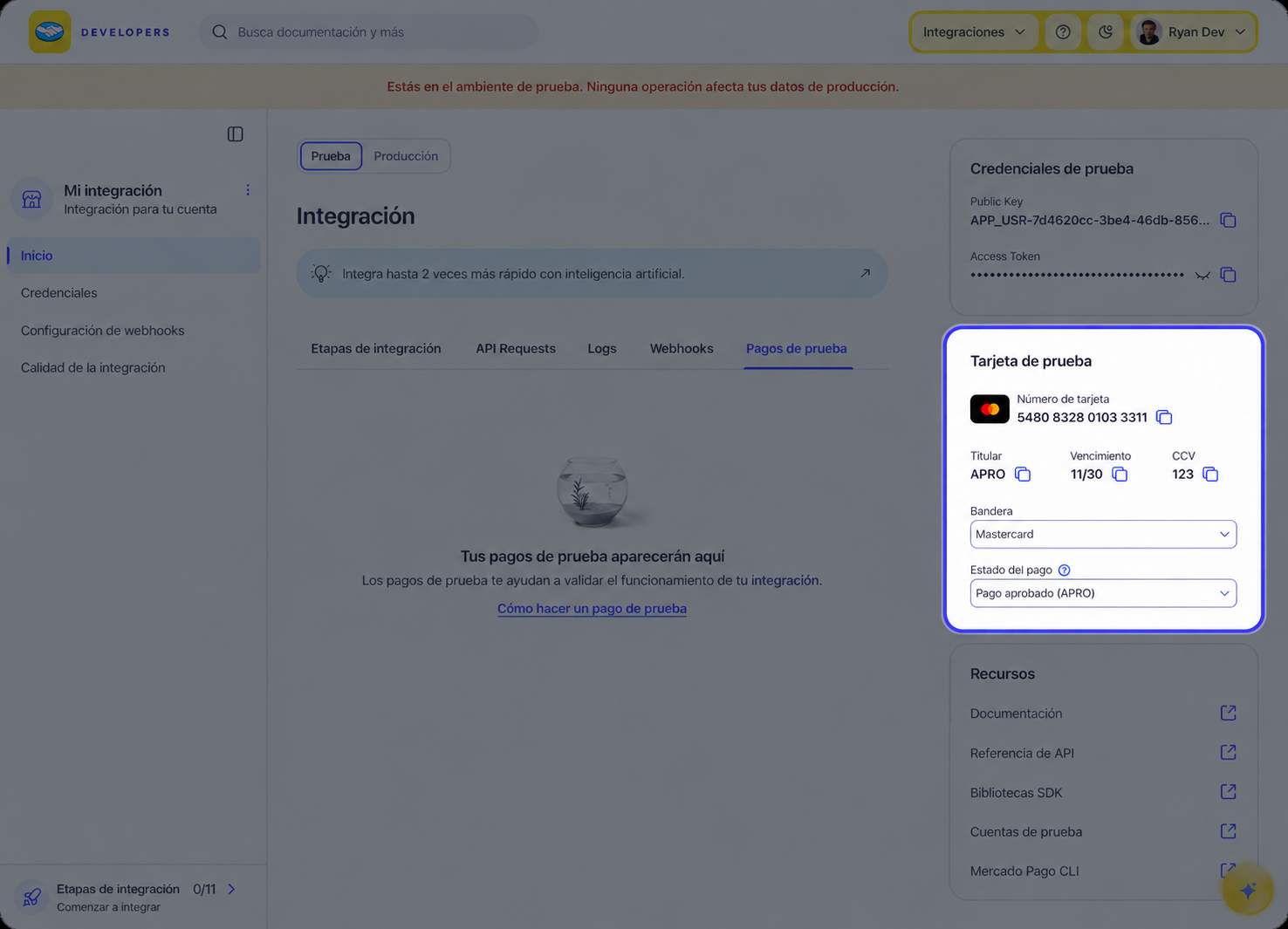
Once you have completed all the fields correctly, click the button to process the payment and wait for the result.
To verify that the test purchase was carried out according to the expected results based on the data entered, send a request to the /v1/orders/{id}GET endpoint, replacing id with the order identification, received in the response to its creation.
The response to this call should bring the detailed information of the test transaction, along with the status chosen for the payment in the previous step within the status field.
Alternatively, you can view the payment result from your application. To do this, go to Integrations and select the application card. Make sure Test is selected in the selector at the top and, on the Home screen, select the Test payments tab. Then, find the payment you made and click on it to view its details and status.
The Checkout SDK does not have a sandbox mode flag: the test environment is activated by the credential. Initialize the SDK with a test Public Key — the entire flow runs without moving real money.
-
Go to Integrations and select the application card. In the side menu, select Credentials and make sure the selector at the top shows Test.
-
Copy the test Public Key of your application.
-
Initialize the SDK with this credential, as shown in the example below.
-
Open the checkout flow in the application and use the test cards in the form — they do not generate any real charge.
-
The payment result is controlled by the cardholder name entered in the form.
kotlinMercadoPagoSDK.initialize(
    context = this,
    publicKey = "{{YOUR_PUBLIC_KEY}}",
    countryCode = CountryCode.BRA
)
Mercado Pago provides test cards that will allow you to test payments without using a real card.
Their data, such as number, security code, and expiration date, can be combined with the data relating to the cardholder, which will allow you to test different payment scenarios. That is, you can use the information of any test card and test different payment results based on the cardholder's data.
Below, you can see the data of the test debit and credit cards. Select the one you want to use to test your integration.
| Card type | Flag | Number | Security code | Expiration date |
| Credit card | Mastercard | 5031 7557 3453 0604 | 123 | 11/30 |
| Credit card | Visa | 4509 9535 6623 3704 | 123 | 11/30 |
| Credit card | American Express | 3711 803032 57522 | 1234 | 11/30 |
| Debit card | Mastercard | 5287 3383 1025 3304 | 123 | 11/30 |
| Debit card | Visa | 4002 7686 9439 5619 | 123 | 11/30 |
Next, choose which payment scenario to test and fill in the cardholder's information (First name and last name, Document type and number) as indicated in the table below.
| Payment Status | Cardholder’s first and last name | Identity document |
| Approved payment | APRO | (DNI) 12345678 |
| Declined for general error | OTHE | (DNI) 12345678 |
| Pending payment | CONT | - |
| Declined with validation to authorize | CALL | - |
| Declined for insufficient amount | FUND | - |
| Declined for invalid security code | SECU | - |
| Declined due to due date issue | EXPI | - |
| Declined due to form error | FORM | - |
| Rejected for missing card_number | CARD | - |
| Rejected for invalid installments | INST | - |
| Rejected for duplicate payment | DUPL | - |
| Rejected for disabled card | LOCK | - |
| Rejected for non-permitted card type | CTNA | - |
| Rejected due to exceeded PIN attempts | ATTE | - |
| Rejected for being on the blacklist | BLAC | - |
| Not supported | UNSU | - |
| Used to apply amount rules | TEST | - |
To verify whether the test purchase was completed correctly, send a request to the /v1/orders/{id}GET endpoint, replacing id with the order identification.
For end-to-end flows, create test users in the application's Test environment, under Credentials > Test account > Manage test accounts.
APP_USR.Ready! Once these steps are completed, the integration of cards as a payment method is complete, and you can either continue testing other integrated payment methods, or go to production.